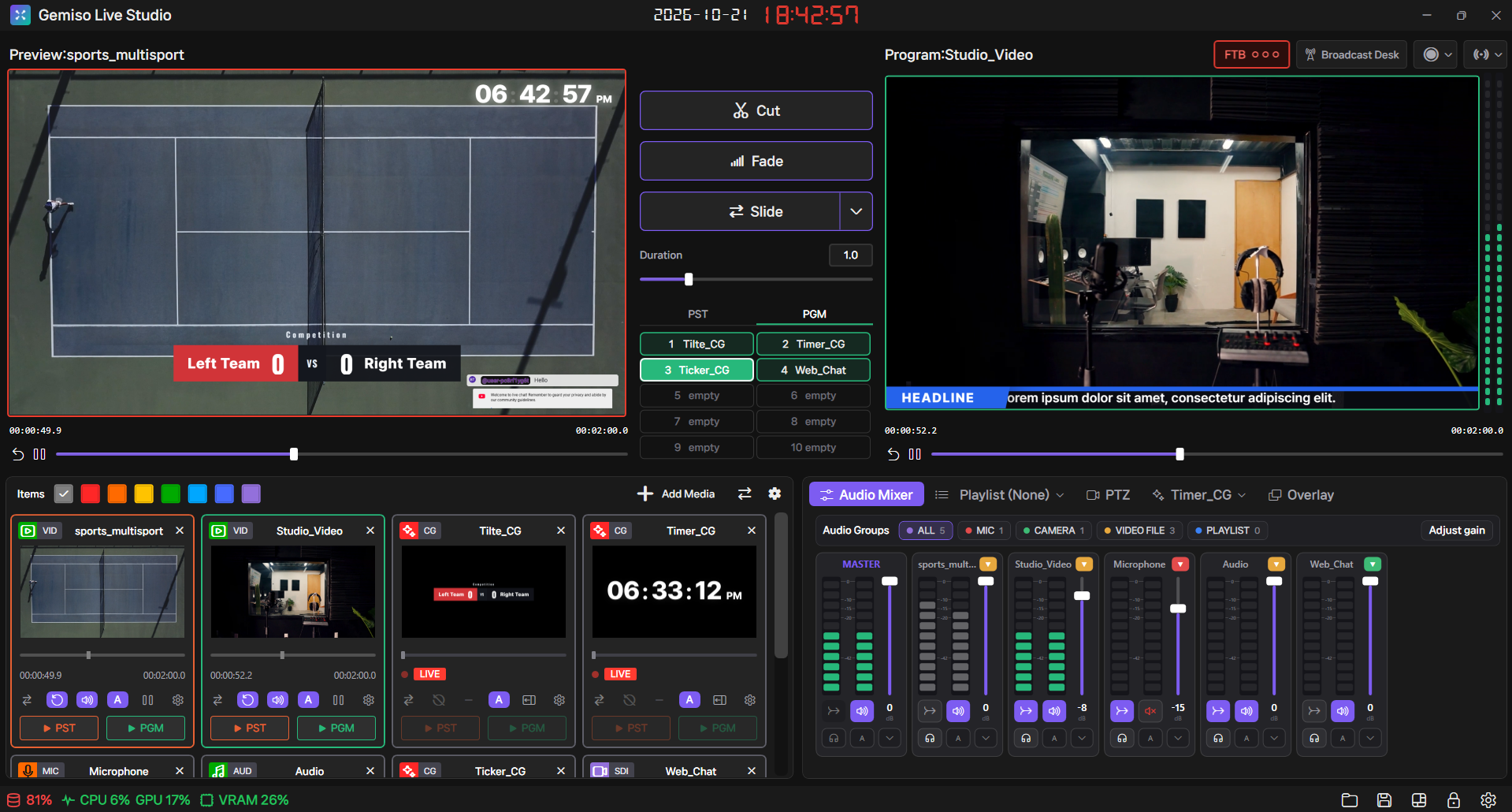
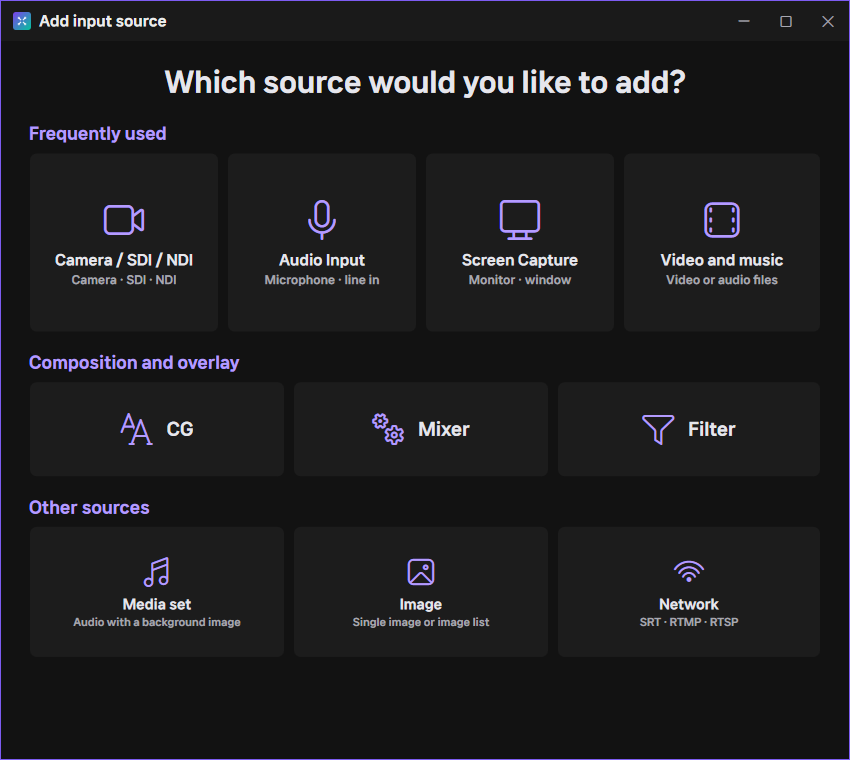
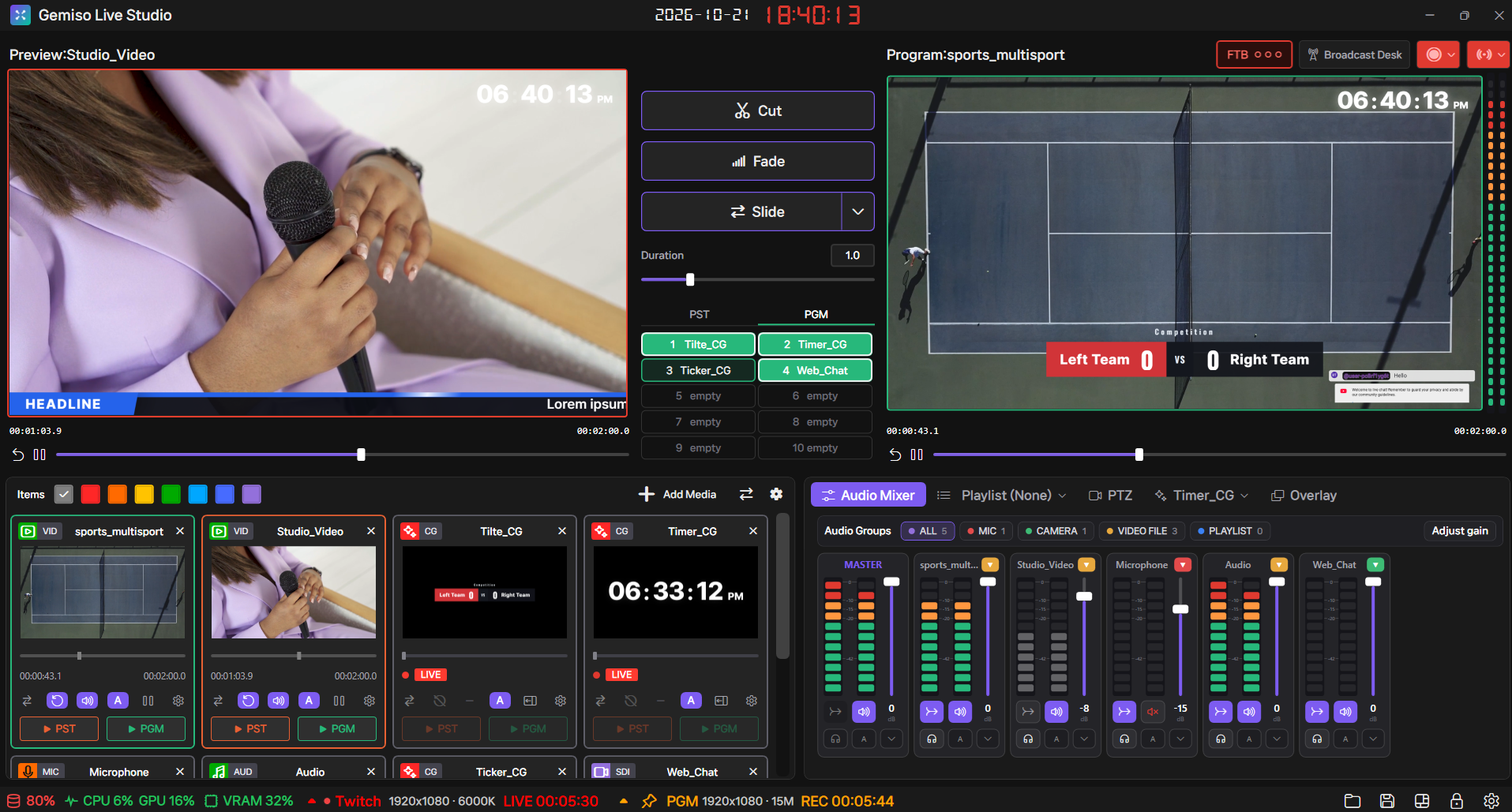
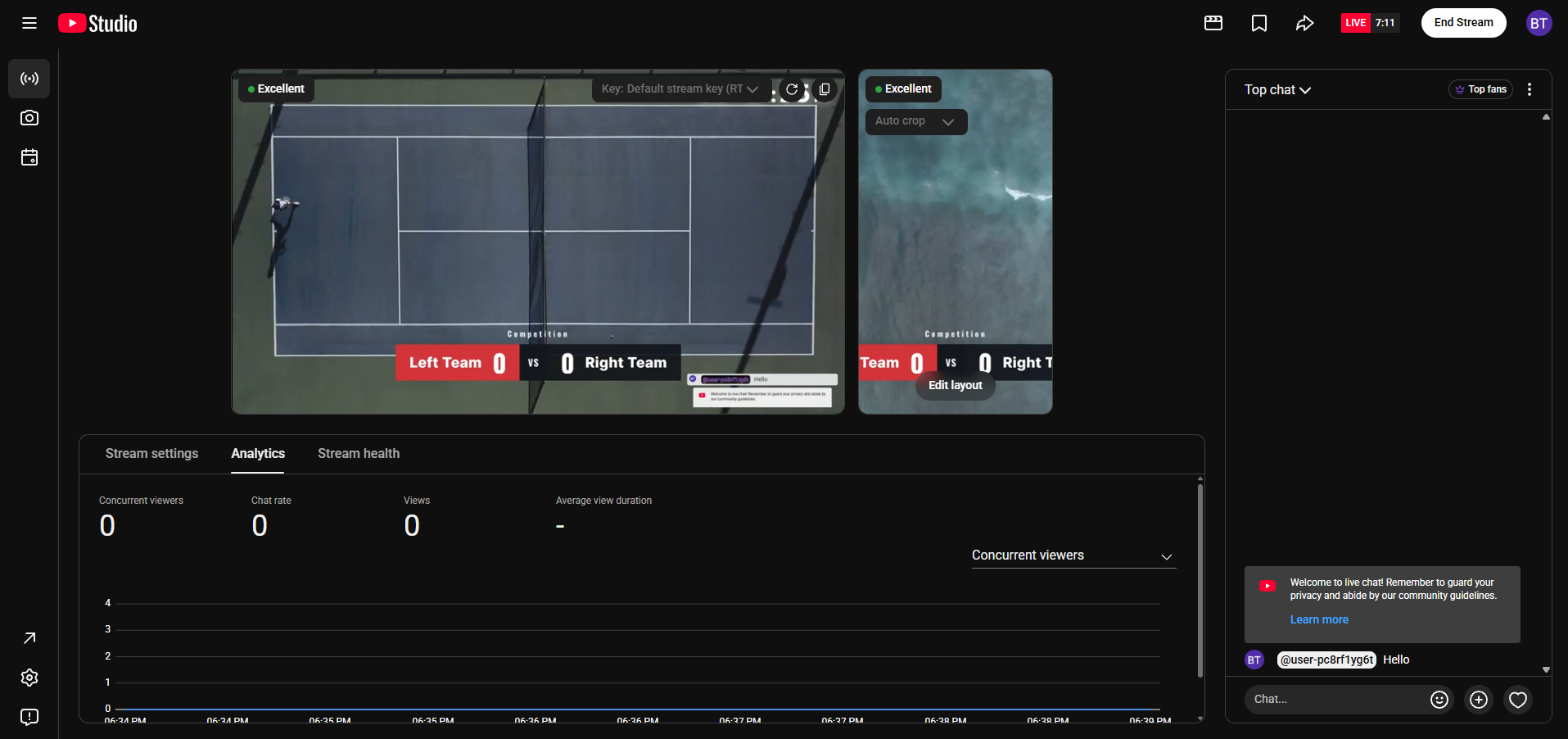
Recommended spec
Recommended system specs
Four tiers, chosen by the scale of your broadcast (how many sources run at once): Minimum · Standard · Recommended · Ultra. The higher the specification, the more headroom you have for input sources, recordings and streams running at the same time.
| Item | Minimum | Standard | Recommended | Ultra |
|---|
| CPU | Intel Ultra 5 245K class
AMD Ryzen 7 7700 class | Intel Ultra 5 250K class
AMD Ryzen 7 9700X class | Intel Ultra 7 270K class
AMD Ryzen 9 9900X class | 16 cores / 32 threads or more (3.0GHz base)
e.g. Xeon W · Threadripper PRO |
|---|
| GPU | RTX 3050 (6GB) | RTX 5060 Ti (16GB) | RTX 5070 Ti (16GB) | RTX 5080 (16GB) or higher |
|---|
| Memory | 16GB DDR5 | 32GB DDR5 | 64GB DDR5 | 64GB DDR5 |
|---|
| Storage | 1TB M.2 NVMe | 2TB NVMe | 2×2TB NVMe | Multiple NVMe SSDs |
|---|
| Input sources | 4–6 | 8–12 | 12–16 | 20 or more |
|---|
| Recordings (concurrent) | 1 | 2 | 2 | 4 |
|---|
| Streams (concurrent) | 1 | 2 | 3 | 4 |
|---|
Note: the concurrent input, recording and streaming counts in the table are not the absolute maximum the hardware can process. They are the level at which a broadcast runs smoothly without dropouts. The real limit may be higher or lower depending on resolution, codec, graphics, effects and source types.
Hardware acceleration — every GPU recommended above is an NVIDIA part supporting NVENC (encoding) and NVDEC (decoding). GTX 1050 (Pascal) and later support H.264 hardware encoding, and throughput and concurrent-session headroom grow across the RTX range. (H.265/HEVC playback works on every tier; H.265 encoding is in preparation.)
- If you also use graphics, capture, or sound cards, the motherboard needs the matching PCIe slots.
- For real-time recording performance, we recommend M.2 / NVMe SSD for storage.
- Actual requirements may vary with the features used, the resolution, and the number of sources processed at once.
Hardware encoder
Supported hardware encoders
Hardware encoders supported by each vendor. The name beside each codec is the exact label shown in Gemiso Live Studio's settings.
NVIDIA NVENC
A dedicated encoder on NVIDIA graphics cards. Its balance of quality and speed makes it the most common choice for broadcasting.
| Codec | Display name in settings | Required hardware |
|---|
| H.264 | H.264 AVC (NVIDIA NVENC, HW) | Most GeForce 600 series (Kepler) and later |
|---|
| H.265 (HEVC)Coming soon | H.265 HEVC (NVIDIA NVENC, HW) | GeForce 900 series (Maxwell 2nd gen) and later |
|---|
- Pros — Low CPU load, stable real-time performance, broad support
- Caution (concurrent session limit) — Consumer GeForce cards limit the number of concurrent NVENC sessions by driver policy. When sessions run out, some tasks may automatically fall back to software.
- Recommended — Install the latest NVIDIA driver.
Intel Quick Sync VideoIntegrated graphics (iGPU)
An encoder built into the integrated graphics (iGPU) of Intel CPUs. It runs without a discrete graphics card, making it a cost-effective option.
| Codec | Display name in settings | Required hardware |
|---|
| H.264 | H.264 AVC (Intel QuickSync, HW) | 2nd gen Core (Sandy Bridge) and later + iGPU |
|---|
| H.265 (HEVC)Coming soon | H.265 HEVC (Intel QuickSync, HW) | 6th gen Core (Skylake) or later, with iGPU |
|---|
- Pros — Hardware acceleration even without a discrete graphics card, low power consumption
- Requirements — (1) integrated graphics in the CPU (2) integrated graphics enabled in BIOS/UEFI (3) the latest Intel graphics driver installed
AMD AMFRadeon
An encoder on AMD graphics cards (AMF, based on VCN).
| Codec | Display name in settings | Required hardware |
|---|
| H.264 | H.264 AVC (AMD AMF, HW) | Radeon HD 7000 series (GCN) and later |
|---|
| H.265 (HEVC)Coming soon | H.265 HEVC (AMD AMF, HW) | Radeon RX 400 series and later recommended |
|---|
Software encoderUses CPU, no GPU
| Codec | Display name in settings | Notes |
|---|
| H.264 | H.264 AVC (Windows Media Foundation, SW) | The software default for streaming and recording. Built into Windows, so it runs on every PC with no extra installation |
|---|
| H.264 | H.264 AVC (Cisco OpenH264, SW) | Lightweight software encoder |
|---|
| H.265 (HEVC)Coming soon | H.265 HEVC (Windows Media Foundation, SW) | Software encoder built into Windows |
|---|
- The default is “Automatic (matched to the detected GPU)”. On startup Gemiso Live Studio detects your hardware and picks the most suitable hardware codec among NVENC, QuickSync and AMF. Where hardware acceleration is unavailable it falls back safely to Windows Media Foundation (SW), which ships with every Windows PC.
- Note for Windows K, KN and N editions — the Windows Media Foundation encoder ships with Windows, but some editions such as K, KN and N omit the media features and need them installed separately. Add the Settings → Apps → Optional features → Add a feature (or Control Panel → Programs and Features → Turn Windows features on or off) path and install the Media Feature Pack, then restart to enable it.
Reference links
The hardware requirements in this document are general guidelines; actual support may vary with graphics driver version and GPU model.
Supported codecs
Codecs supported by Gemiso Live Studio
Playback (decoding) and output (encoding) have different coverage. The range of file formats you can load and play is wide, while the codecs used for streaming and recording follow broadcast standards.
① Decoding — files you can load and play
You can load the formats below as sources and play or mix them. Playback works on every tier: it is accelerated in hardware (NVDEC, Quick Sync) and falls back to software automatically when needed.
| Type | Main codecs | File formats |
|---|
| Video | H.264H.265 (HEVC)MPEG-2MPEG-4VP9VC-1DVMJPEG and more | .mp4.mov.mkv.avi.mxf.ts.webm.flv.wmv.m4v.3gp.vob.ogv |
|---|
| Audio | AACMP3MP2AC-3FLACALACOpusVorbisWMAPCM | .wav.mp3.mp2.aac.ac3.flac.m4a.opus.ogg.wma.aiff |
|---|
| Image | PNGJPEGBMPGIFTIFFWebP | .png.jpg.bmp.gif.tif.tiff.webp |
|---|
H.265 (HEVC) playback is supported. Loading, playing and mixing files recorded in H.265 works on every tier. What is still in preparation is streaming and recording (encoding) in H.265 — see the encoding section below.
② Encoding — codecs used for streaming and recording
Video
| Codec | Method | Streaming | Recording | Feature |
|---|
h264_mf | Software | ✓ | ✓ | Built into Windows · safe default |
libopenh264 | Software | ✓ | ✓ | Lightweight |
n264 | NVIDIA HW | ✓ | ✓ | Recommended for broadcast |
h264_qsv | Intel HW | ✓ | ✓ | Integrated graphics (QuickSync) |
h264_amf | AMD HW | ✓ | ✓ | Radeon |
hevc (nvenc·qsv·amf) | Hardware | — | — | High compression · coming soon |
hevc_mf | Software | — | — | High compression · coming soon |
H.265 (HEVC) encoding is in preparation. For now, use the H.264 family for streaming and recording.
Audio
| Codec | Display name in settings | Notes |
|---|
aac | AAC (Advanced Audio Coding) | Default · Broadcast standard |
libmp3lame | MP3 (LAME) | General purpose |
mp2 | MP2 (MPEG Audio Layer 2) | Broadcast equipment compatible |
flac | FLAC (lossless) | Lossless recording |
alac | ALAC (Apple Lossless) | Lossless |
libopus | Opus | Low latency · high efficiency |
libvorbis | Ogg Vorbis | Open format |
pcm_s16le | PCM (uncompressed) | Uncompressed original |
For streaming (RTMP) the container specification exposes only aac · mp3. Lossless and uncompressed options such as FLAC, ALAC and PCM are mainly used for recording to file.
How to set up
Setup
Settings live in two places. Application-wide options are in the Settings window, while the actual resolution, bitrate and codec are set in the Stream settings / Recording settings dialogs on the action bar at the bottom of the main screen.
Check these before broadcasting or recording
Master format (resolution & FPS)Settings → Video
The resolution and frame rate that composition and output are based on. Every dependent value (recommended bitrate, the list of output resolutions) follows from it. Changing it requires a restart and is not possible while broadcasting or recording, so fix it before you start.
GPU & hardware accelerationSettings → Video
Selects the GPU adapter and the direct-to-GPU preview and encoder input paths. On multi-GPU machines, check which adapter is selected. On-air output uses the hardware encoder, and changes require a restart.
Stream settingsAction bar
Sets the platform (YouTube, Facebook and others), URL and stream key, along with the video codec, resolution, bitrate and keyframe interval.
Recording settingsAction bar
Sets the container (MP4 and others), codec, output resolution and bitrate, plus the save path and file naming pattern.
Audio monitor outputSettings → Audio
Selects the output device used for monitoring. Changes take effect after a restart.
Defaults & available values
Master format (resolution & FPS)1920×1080 60p (default) · 720p–2160p at 30, 59.94, 60p and more
Output resolution1920×1080 (default) · downscale only (cannot exceed the master format)
Stream bitrate4000K–35000K (default 12000K; the recommended value per platform is calculated automatically)
Recording bitrate5M–50M (default 15M)
Audio48kHz · 32-bit float · 2ch, fixed / bitrate 128, 192, 256, 320K
Recording containerMP4 (default) · MOV · MKV · MXF · TS · WebM and more
Streaming platformsYouTube · Facebook · Twitch · custom RTMP
Stream keyframe interval1, 2 or 4 seconds (2 seconds recommended)
Caution — changing the master format, GPU or audio output device requires a restart and is not possible while broadcasting or recording. Change them while idle, then run a short test. The audio engine is fixed at 48kHz · 32-bit float · 2ch, so sample rate and channel count are not selectable.
Troubleshooting
FAQ · Troubleshooting
The NVIDIA, Intel or AMD hardware encoders are missing from the codec list.
Your graphics driver may be outdated or not installed — install the latest driver. It is also possible that your GPU generation does not support that codec. Intel QuickSync requires integrated graphics on the CPU, and will not appear if integrated graphics are disabled in BIOS/UEFI.
The software encoder (Windows Media Foundation) is missing, or encoding fails.
Software H.264 uses Media Foundation, which is built into Windows. Some editions such as K, KN and N omit the media features, so the encoder may not work. Install the Media Feature Pack from Settings → Apps → Optional features → Add a feature (or Control Panel → Programs and Features → Turn Windows features on or off), then restart Gemiso Live Studio.
The screen stutters or drops frames during a broadcast.
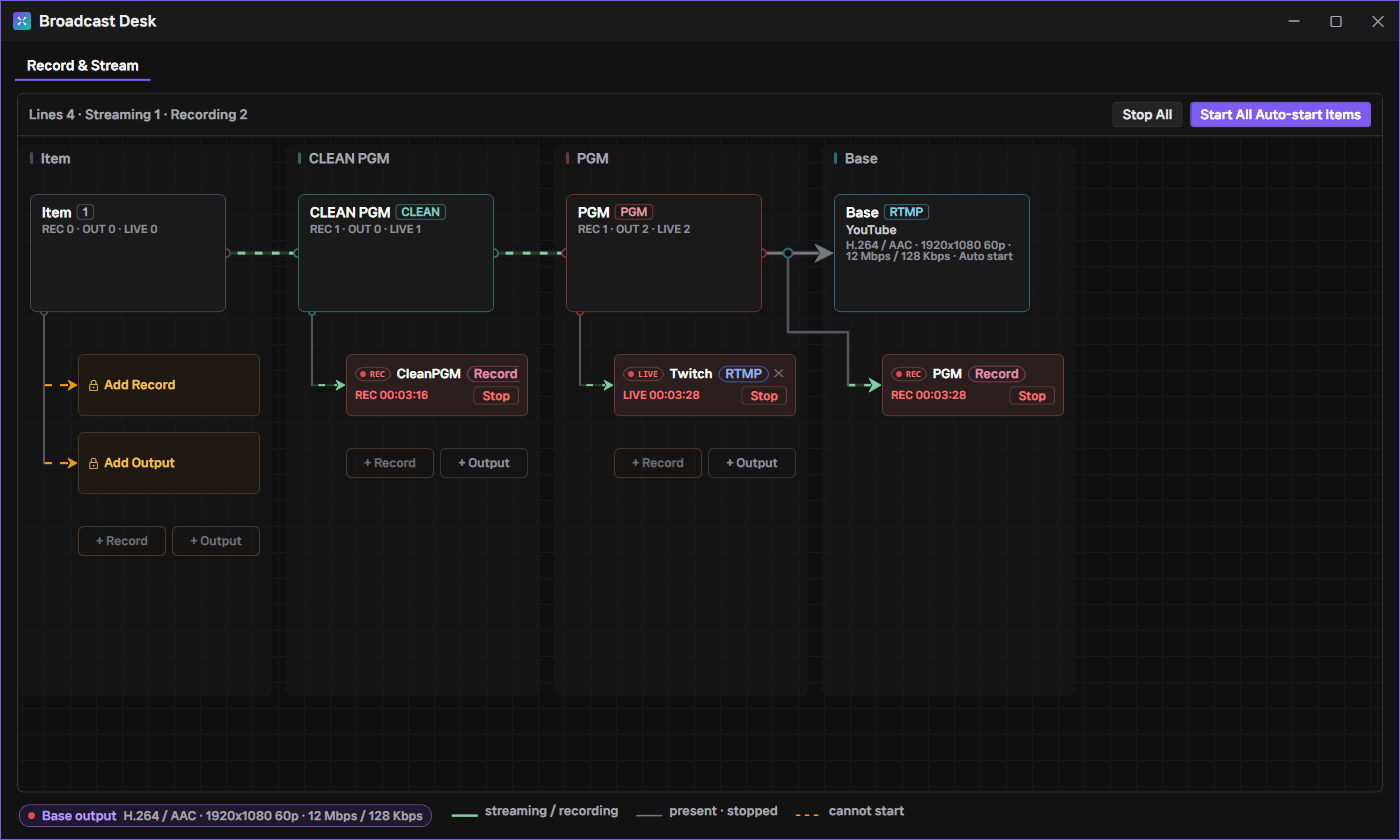
If the CPU is close to 100%, switch from a software codec to a hardware codec (NVENC, QuickSync, AMF). If GPU usage is high, lower the resolution or bitrate, or reduce the number of sources playing at once. Running both the stream and the recording in hardware can hit the NVENC concurrent-session limit, at which point some tasks fall back to software and raise CPU load — adjust the codec combination if that happens.
Playback stutters when several files play at once. (hardware decoding limit)
4K or high-bitrate files, or several files playing at once, can exceed the concurrent capacity of the hardware decoder (NVDEC and similar). Gemiso Live Studio then switches to software decoding automatically so playback does not break up. Frequent fallbacks raise CPU load, so reduce the number of concurrent sources or lower the resolution.
A particular file will not open, or playback is corrupted.
First check whether the format appears in the decoding (playback) list in the Supported codecs section. If it is listed and still fails, it is likely a GPU decoding compatibility issue, which a graphics driver update often resolves. When hardware decoding fails, Gemiso Live Studio switches to software decoding automatically.
I want to reduce the recording file size.
Lower the recording bitrate (within the 5M–50M range) or drop the resolution to 1280×720. H.265 (HEVC) recording, which reduces size further at the same quality, is in preparation. (Loading and playing files shot in H.265 already works.)
I am not sure which codec to choose.
Leave the encoding codec on “Automatic (matched to the detected GPU)”. Gemiso Live Studio detects your hardware, selects the most suitable codec among NVENC, QuickSync and AMF, and falls back safely to Windows Media Foundation (SW) where hardware acceleration is unavailable.
How is the “up to 8 hours per session” limit on Standard counted?
Only the time streaming or recording is actually running counts. Time with the app merely open is not counted. Streaming and recording are counted separately. The status bar at the bottom of the app shows a remaining-quota gauge; hover over it to see the exact remaining time, limit and total used. Resting 30 minutes after the last run resets the total to zero, giving you a full 8 hours again. Pro and above have no time limit.
What happens when the 8 hours run out?
Once the limit is used up, that stream (or recording) stops and cannot be started again for 30 minutes. After 30 minutes the total resets and you can start right away. If you stop on your own before reaching the limit, you can restart immediately with no wait — in that case the time used so far carries over.